
Web Accessibility Testing: A Developer's Complete Guide
TL;DR:
- Web accessibility testing evaluates websites for compliance with standards like WCAG 2.2, ADA, and Section 508. Automated tools identify many violations quickly, but manual reviews are essential for comprehensive assessment. Embedding tests into development workflows and addressing common issues ensures accessible, user-friendly websites.
Web accessibility testing is the process of evaluating a website's code, content, and interface to verify that people with disabilities can use it effectively. Standards like WCAG 2.2, ADA, and Section 508 define what "accessible" means in practice. Automated tools like ACE Scanner and Axe-core check against 50 to 100+ rules and return violation reports in under a minute. Manual reviews then catch what scanners miss. This guide covers the full picture: tool types, workflow integration, common fixes, and why human judgment is still the final word on accessibility compliance.
What types of web accessibility testing tools exist?
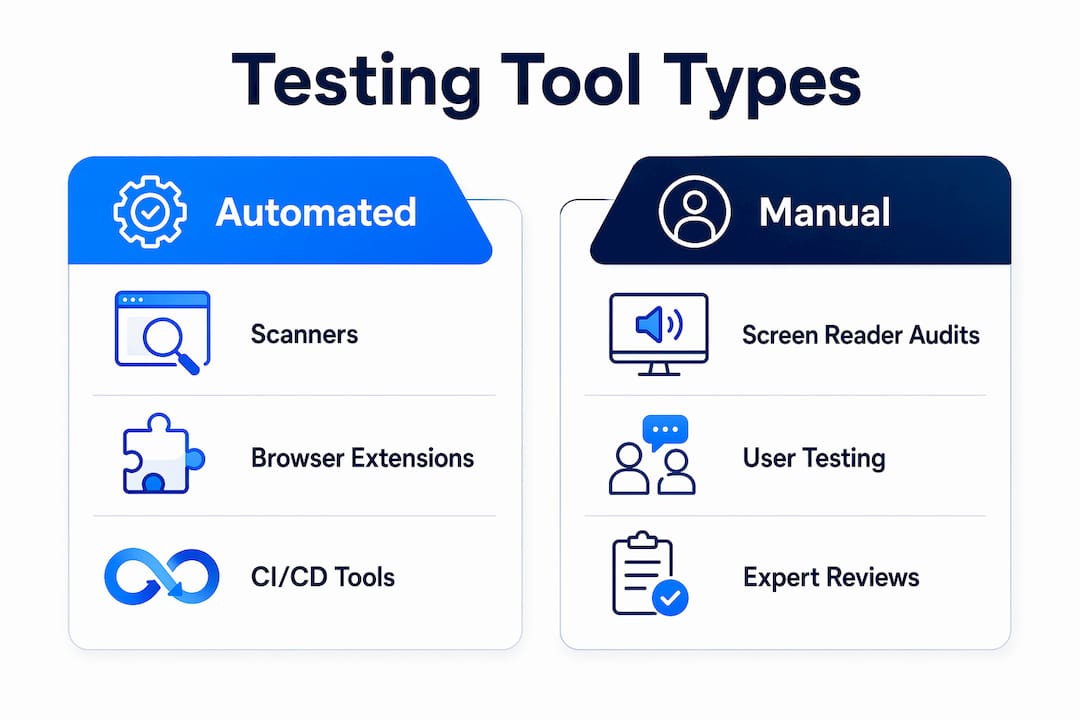
The accessibility testing tool landscape splits into two clear categories: automated scanners and manual review methods. Each serves a different purpose, and neither works well without the other.

Automated scanners analyze a page's DOM against WCAG 2.2 rules and flag violations like missing alt text, poor color contrast, and broken ARIA roles. Tools like ACE Scanner, WAVE, and Scanluma fall into this group. ACE Scanner classifies issues by ACE Impact Classification, sorting them into Legal Risk, User Impact, or Best Practice categories. That classification helps developers prioritize fixes by severity rather than treating every flag as equal.
Browser extensions run directly in Chrome or Firefox during normal browsing. They catch issues in rendered pages rather than static HTML, which makes them better at spotting problems in single-page applications. AccessibilityChecker.org's browser extension combines static DOM scanning with real-time browser-based testing, catching more issues than either method alone.
Interactive and CI/CD-integrated tools like Cypress Accessibility go further. They record unique application states during automated test runs and attach DOM snapshots for triage. This means your team can catch accessibility regressions the same way you catch broken functionality: before code ships.
Here is a comparison of widely used tools:
| Tool | Free tier | Scan type | CI/CD support | Report export |
|---|---|---|---|---|
| ACE Scanner | Yes | Full site crawl + single page | Yes | JSON, CSV |
| WAVE | Yes | Single page | No | Limited |
| Scanluma | Yes (10 scans/month) | Single page + sitemap | Partial | JSON, CSV |
| Cypress Accessibility | Trial | Interactive + DOM snapshot | Yes | JSON |
| Axe-core | Yes (open source) | DOM-based | Yes | JSON |
- ACE Scanner tests across WCAG 2.2 levels A, AA, and AAA plus ADA and EAA legislation.
- Scanluma's free accessibility checker offers 10 free scans per month with JSON and CSV export for sprint backlogs or legal records.
- Axe-core integrates directly into Jest, Playwright, and Cypress test suites with no additional configuration.
- WAVE is best for quick visual feedback during design reviews, not for CI/CD pipelines.
Pro Tip: Run ACE Scanner or Scanluma on your staging environment before every release. Staging scans catch regressions in a realistic context without affecting production traffic.
How to integrate accessibility checks into your dev workflow
Embedding accessibility checks into your development cycle is the single most effective way to prevent compliance debt from accumulating. Fixing issues at the code-review stage costs a fraction of fixing them post-launch.
-
Add automated scanning to your CI/CD pipeline. Tools like Cypress Accessibility trigger on every commit or pull request. CI/CD integration records DOM snapshots at each application state, giving developers a precise record of where and when an issue appeared.
-
Use sitemap crawling for full-site coverage. Testing individual pages manually on large sites is inefficient. Sitemap-based crawling combined with automated scanning maximizes coverage without proportionally increasing team effort.
-
Export reports in JSON or CSV after every scan. These formats feed directly into Jira, Linear, or any sprint backlog tool. They also serve as legal documentation if your organization faces an ADA complaint.
-
Schedule weekly full-site scans in addition to commit-level checks. Commit-level checks catch regressions in changed files. Weekly scans catch issues introduced by third-party scripts, CMS updates, or content changes that fall outside the code review process.
-
Assign accessibility issue triage to a named team member each sprint. Without ownership, flagged issues sit in backlogs indefinitely. One person reviewing ACE Rule IDs and impact classifications each sprint keeps remediation moving.
Pro Tip: Use Axe-core inside your existing Cypress or Playwright test suite. You get accessibility coverage without maintaining a separate testing framework, which reduces overhead for small teams.
Balancing automated and manual testing during sprints requires a clear split. Automated tools handle regression detection and broad coverage. Manual reviews handle new features, interactive components, and anything involving dynamic content. Treat them as complementary, not interchangeable.
Common accessibility issues and how to fix them
The most frequently detected accessibility failures fall into a predictable set of categories. Automated scans consistently surface color contrast failures, missing ARIA roles, unlabeled form fields, and poor alt text as the top violations. Fixing these five categories addresses the majority of issues found on most sites.
Color contrast is the most common single failure. WCAG 2.2 requires a contrast ratio of at least 4.5:1 for normal text and 3:1 for large text. Use the WebAIM Contrast Checker or the built-in contrast tool in Chrome DevTools to verify ratios before publishing any new UI component.
ARIA roles and form labels are the second most common failure category. An input field without an associated <label> element is invisible to screen readers. ARIA roles like role="button" on a <div> element must also include keyboard event handlers. Adding the correct semantic HTML element is almost always better than patching with ARIA.
Alt text quality matters more than alt text presence. An image described as "image1.jpg" passes the automated check for alt text existence but fails the human review for meaning. Alt text should describe the function or content of the image, not its file name or decorative status.
Keyboard navigation failures are common in custom dropdown menus, modal dialogs, and date pickers. Every interactive element must be reachable and operable with a keyboard alone. Test this by unplugging your mouse and navigating your entire site using only Tab, Shift+Tab, Enter, and arrow keys.
Key fix strategies:
- Replace
<div>and<span>buttons with native<button>elements. - Add
aria-labeloraria-labelledbyto icon-only buttons. - Set a logical tab order using
tabindexonly when the DOM order cannot be changed. - Add
role="alert"to dynamically injected error messages so screen readers announce them. - Test reading order by disabling CSS and reviewing the raw content flow.
For teams building accessible experiences from the start, web accessibility and SEO share significant overlap. Semantic HTML, descriptive link text, and proper heading structure improve both screen reader compatibility and search engine indexing.
Why manual accessibility audits are still non-negotiable
Automated tools catch only 30–50% of WCAG violations. That number is not a criticism of the tools. It reflects a structural limitation: scanners read code, not context. They cannot judge whether an alt text description is meaningful, whether a user flow is cognitively clear, or whether a modal dialog is disorienting to someone using a screen reader for the first time.
"Automated validators scan static DOM snapshots and miss issues in dynamic content like modals, dropdown menus, and custom widgets." — AccessibilityChecker.org Developer Guide
Manual audits fill that gap. A trained reviewer navigates the site with a screen reader like NVDA or VoiceOver, tests every interactive element by keyboard, and evaluates the logical flow of content. This process surfaces issues that no scanner can flag: a button labeled "Click here" that makes no sense out of context, or a form that resets on validation error without announcing the problem to the user.
Manual testing also validates user interaction quality that automated tools cannot assess. The goal is not just technical compliance. The goal is a site that a person with a disability can actually use without frustration.
Practical manual audit steps for development teams:
- Test with NVDA on Windows and VoiceOver on macOS and iOS.
- Navigate every form, modal, and interactive widget using only a keyboard.
- Zoom the browser to 200% and verify that content reflows without horizontal scrolling.
- Disable animations and verify that the site remains fully functional.
- Recruit at least one user with a disability for feedback on new features before launch.
Accessibility testing as an ongoing strategy combines automated scans with targeted manual checks and user feedback loops. This approach maintains compliance as legal standards evolve and as your site changes.
Key Takeaways
Effective accessibility compliance requires a layered approach: automated scanning for coverage and speed, combined with manual audits for context and user experience quality.
| Point | Details |
|---|---|
| Automated tools have limits | Scanners catch only 30–50% of WCAG violations; manual review covers the rest. |
| CI/CD integration prevents debt | Adding accessibility checks to every build catches regressions before they reach production. |
| Prioritize by impact classification | Use ACE Impact Classification to fix Legal Risk issues before Best Practice flags. |
| Manual audits require real tools | Test with NVDA, VoiceOver, and keyboard-only navigation on every new feature. |
| Export reports for compliance records | JSON and CSV exports from tools like Scanluma and ACE Scanner serve as legal documentation. |
The case for treating accessibility as a quality signal, not a checklist
My honest view after years of working with development teams on web projects: accessibility testing gets treated as a compliance exercise, and that framing causes most of the problems teams face. When the goal is "pass the scan," teams fix what the scanner flags and ship. When the goal is "build something a blind user can actually navigate," the entire approach changes.
The teams that do this well integrate accessibility checks into their testing types from day one. They do not wait for a legal complaint or a quarterly audit. They run Axe-core in their CI pipeline, they schedule monthly manual reviews, and they treat a screen reader failure the same way they treat a broken API call: as a bug that blocks the release.
The uncomfortable truth is that most accessibility debt comes from moving fast without a process. A developer who has never used a screen reader does not know what a confusing tab order feels like. Education matters as much as tooling. Pair automated scanning with at least one session per quarter where your team navigates your own product using only a keyboard and a screen reader. That experience changes how people write code.
No-code automated testing tools have lowered the barrier for teams without dedicated QA engineers. Use them. But do not let ease of setup become a reason to skip the human review. The 30–50% of issues that scanners miss are often the ones that matter most to actual users.
— Juan
How Gostellar supports your web testing workflow
Teams that run continuous web testing need a platform that keeps up with their release pace. Gostellar is built for exactly that.
Gostellar's no-code visual editor and real-time analytics give development and marketing teams a shared testing environment without requiring engineering resources for every experiment. Its lightweight 5.4KB script means testing infrastructure does not slow down the pages you are working to improve. For teams building accessible, high-performing sites, Gostellar connects the testing workflow from experiment to result. Visit Gostellar to see how continuous testing fits into your current development cycle.
FAQ
What is web accessibility testing?
Web accessibility testing is the evaluation of a website to verify that people with disabilities can use it effectively. It combines automated scanning against WCAG 2.2, ADA, and Section 508 rules with manual review of interactive elements and user flows.
How do I check web accessibility for free?
Tools like WAVE, Axe-core, and Scanluma offer free tiers for single-page audits and limited site crawls. Scanluma's free plan includes 10 scans per month with JSON and CSV report export.
What percentage of accessibility issues do automated tools catch?
Automated tools catch only 30–50% of WCAG violations. Dynamic content, interactive widgets, and subjective criteria like alt text meaning require manual review to assess accurately.
How do I integrate accessibility testing into a CI/CD pipeline?
Add Axe-core to your existing Cypress or Playwright test suite, or use Cypress Accessibility to record DOM snapshots on every build. This flags regressions at the commit level before code reaches production.
What are the most common accessibility failures on websites?
Color contrast failures, missing form labels, incorrect ARIA roles, poor alt text, and broken keyboard navigation are the most frequently detected issues across automated accessibility scans.
Recommended
Published: 6/19/2026